
How to Capture Log Files on Your MotoPlay Super Device
Ever had an app crash constantly or encountered a weird glitch on your phone? When seeking help from tech support or app developers, they’ll often ask for a log file. This behind-the-scenes record of your device’s activity is crucial for diagnosing the problem. Don’t worry – capturing it is easier than you think! Here’s how:
What Are Log Files (Logcats)?
Think of logs as your Android device’s detailed diary. They constantly record events, app behavior, system messages, and especially errors (crashes, freezes, bugs). This raw data helps pinpoint exactly what went wrong.
Why Capture Logs?
- App Crashes/Freezes: Identify the specific cause.
- Battery Drain: See which app/process is working overtime.
- Connectivity Issues: Troubleshoot Wi-Fi/Bluetooth problems.
- Performance Slowdowns: Find resource hogs.
- Reporting Bugs: Give developers concrete evidence.
Method:
Step 1: Prepare SD Card
- 📦 Unzip downloaded firmware:
- File:
C7_Super_181F_C9902A_1024x600_GT911_JLK_ruihao_2025062501_OPEN_SD_LOG_tmpor C5_Super_181E_C9902A_DDR128M_1024x600_GT911_ruihao_2025072501_OPEN_SD_LOG
- File:
- 💾 Copy to SD card:
- Use microSD card (max 32GB, FAT32 formatted)
- Paste unzipped folder directly to SD card’s root directory (not inside any folders)
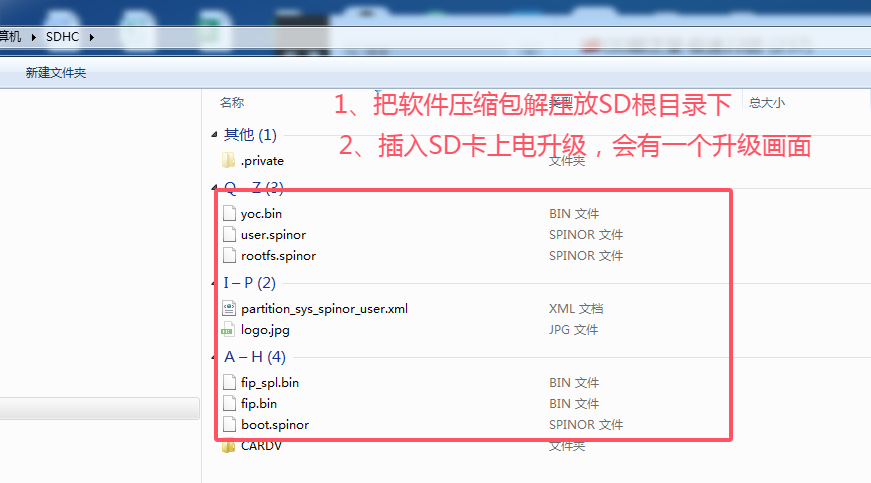
Step 2: Install Firmware
- 🔌 Insert SD card → device’s SD slot
- ⚡ Connect power → Device will:
- Auto-update
- DO NOT disconnect power during update
Step 3: Configure Diagnostic Logging ✅
After successful update:
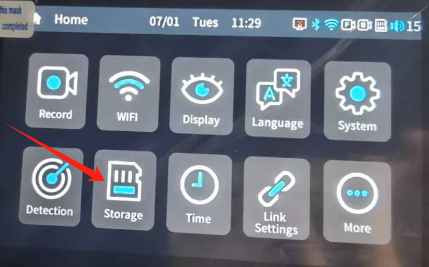
- Format SD card on device:
- ○1 Settings → “Storage” → “Format SD Card”
-
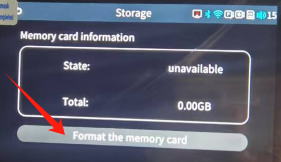
- Keep SD card inserted – Device will log errors automatically
Step 4: Capture Troubleshooting Data 🏍️
- Test device on motorcycle
- When issue occurs:
- 📝 Note exact time (e.g. “9:15 AM during acceleration”)
- 📸 Capture video/photo evidence if possible
- WAIT 5-8 minutes → Let device complete diagnostic logging
- Safely remove SD card
Step 5: Submit Diagnostics 📤
- Copy log files from SD card
- Send the log file to us